 Foundific Glance · Free for Mac, Windows coming soon
A teleprompter that is hidden from screen sharing
Glance shows your script in a small window just under your camera, so you read while looking near the lens. People watching your shared screen or recording do not see it.
Version 1.0.1 for Mac. Free to use, with no account, ads or tracking.
The Windows version is coming to the Microsoft Store.
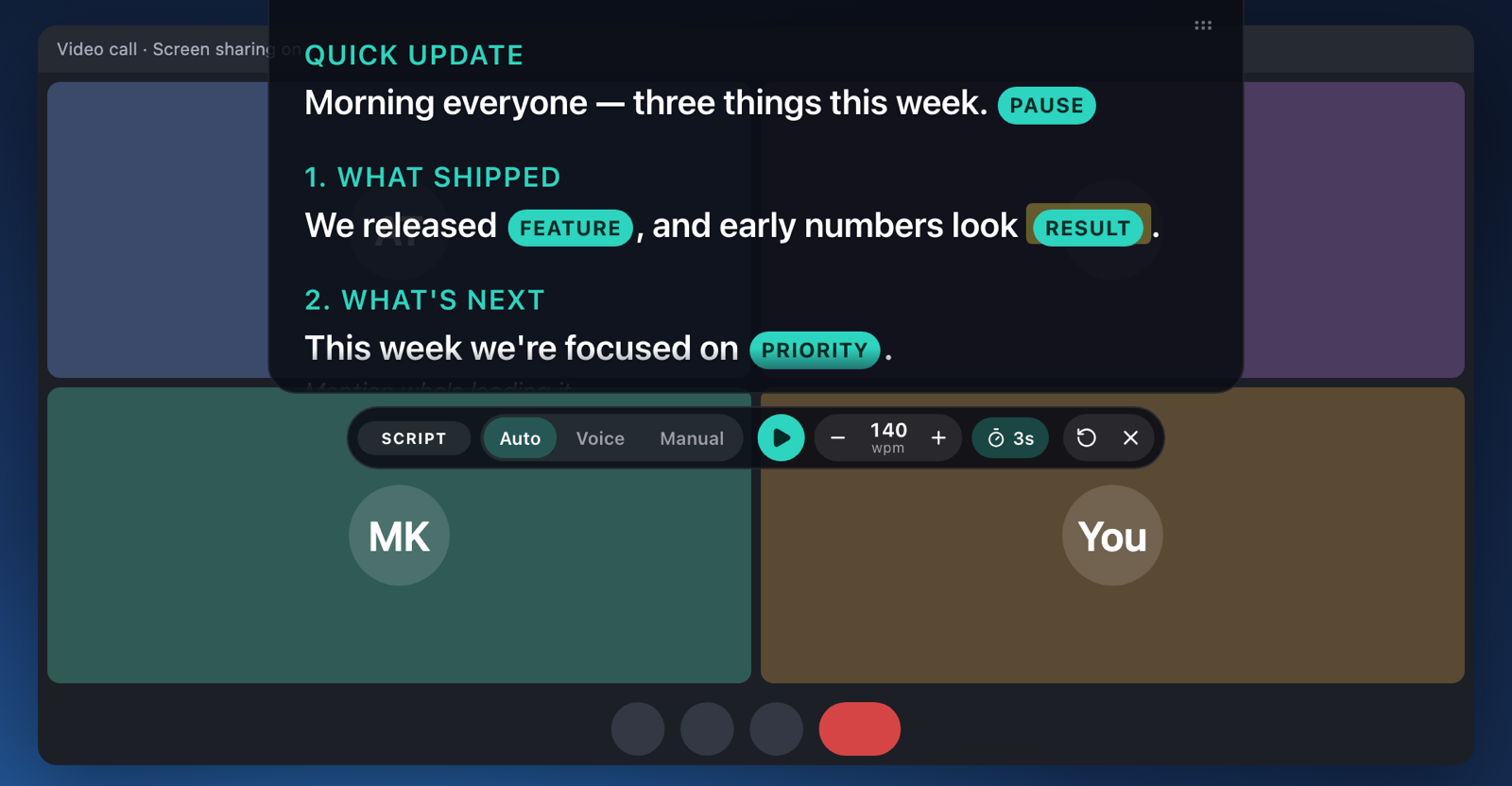
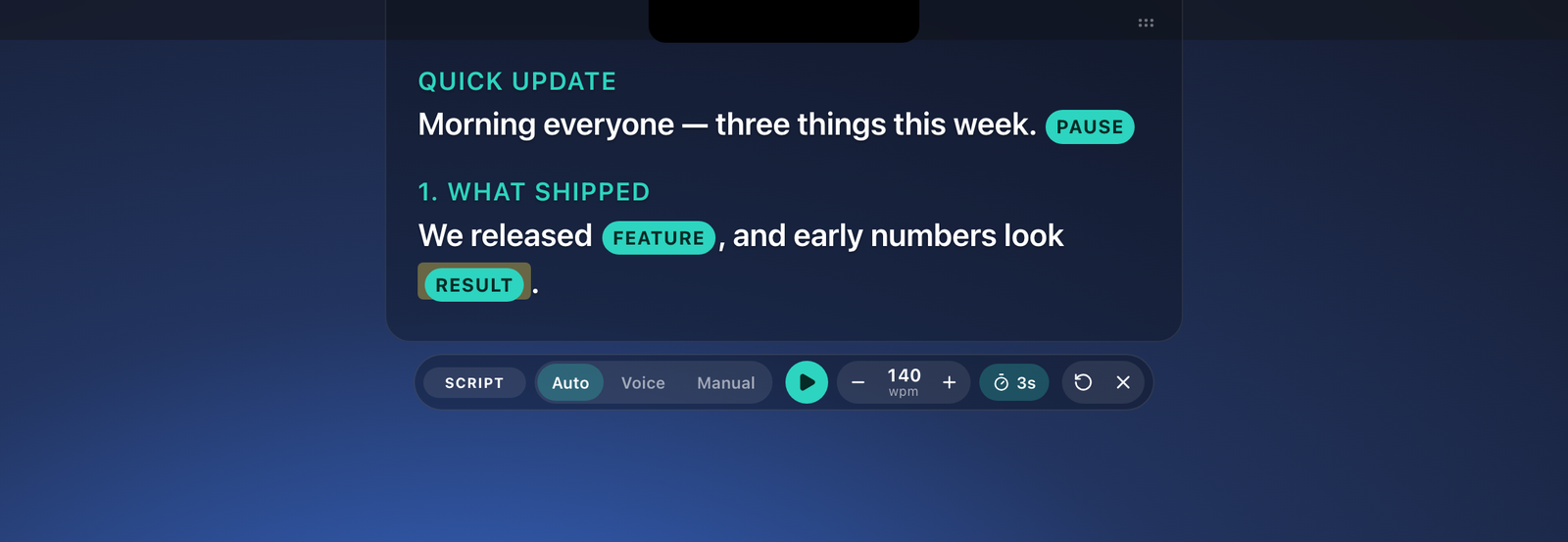
- Hidden from screen sharing and recordings
- Sits just under your camera
- Your content stays on your computer
- Free, with no account, ads or tracking
Features
Glance has a prompter, a script editor, three ways to scroll, interview tools and a practice space.
Prompter under your camera
The prompter drops down at the top of the screen, so your eyes stay near the lens. Resize it, drag it anywhere, and double-click to put it back.
Hidden from screen sharing
The prompter and its control bar are left out of screen shares and recordings. A check during setup confirms this on your computer.
Auto, Voice and Manual scrolling
Auto scrolls at the speed you set in words per minute. Voice follows your voice. Manual moves with the trackpad or the arrow keys.
Script editor
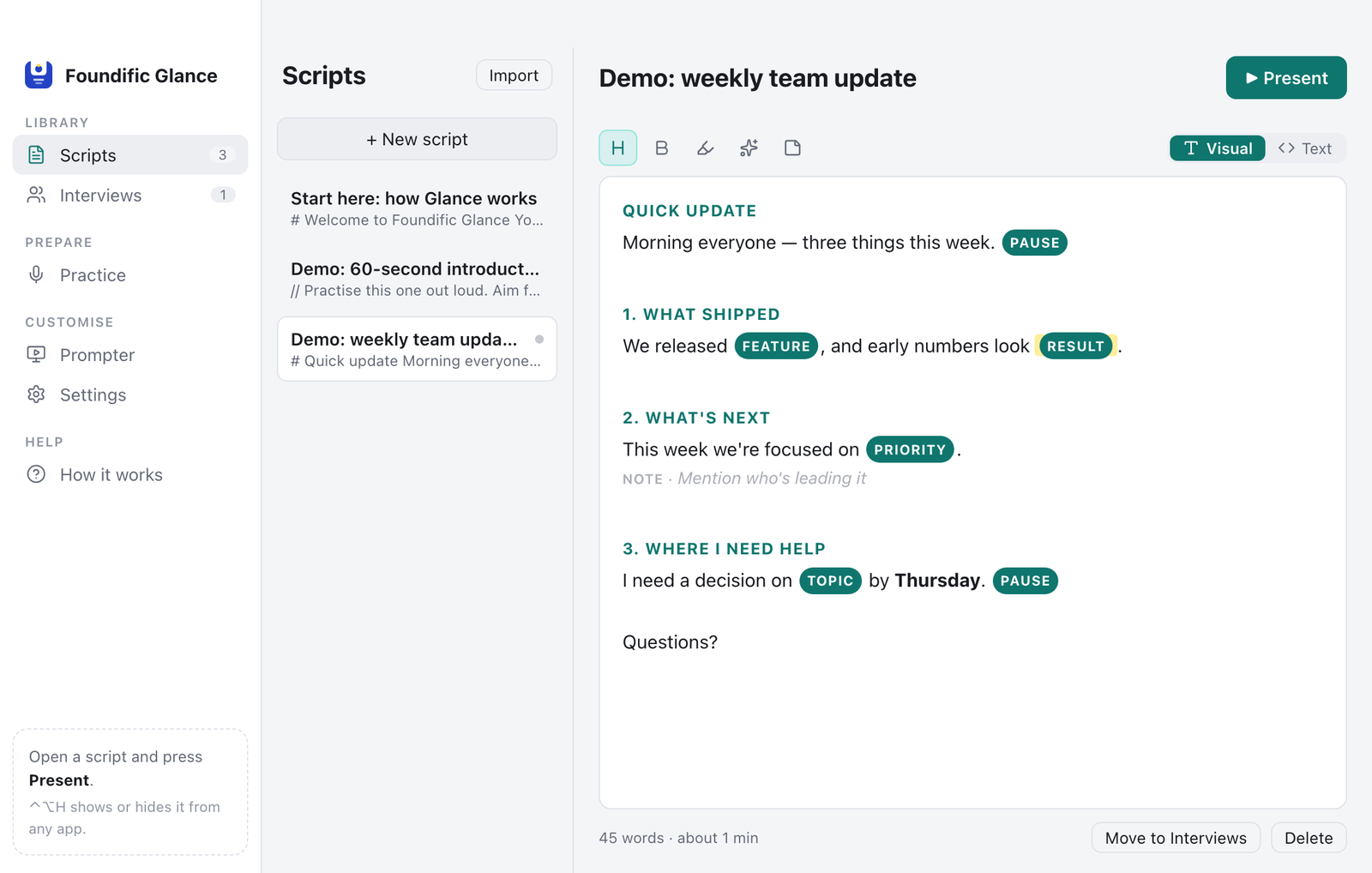
Write with headings, bold, highlights, cues such as [pause] and notes to yourself. Import .docx and .txt files.
Interview tools
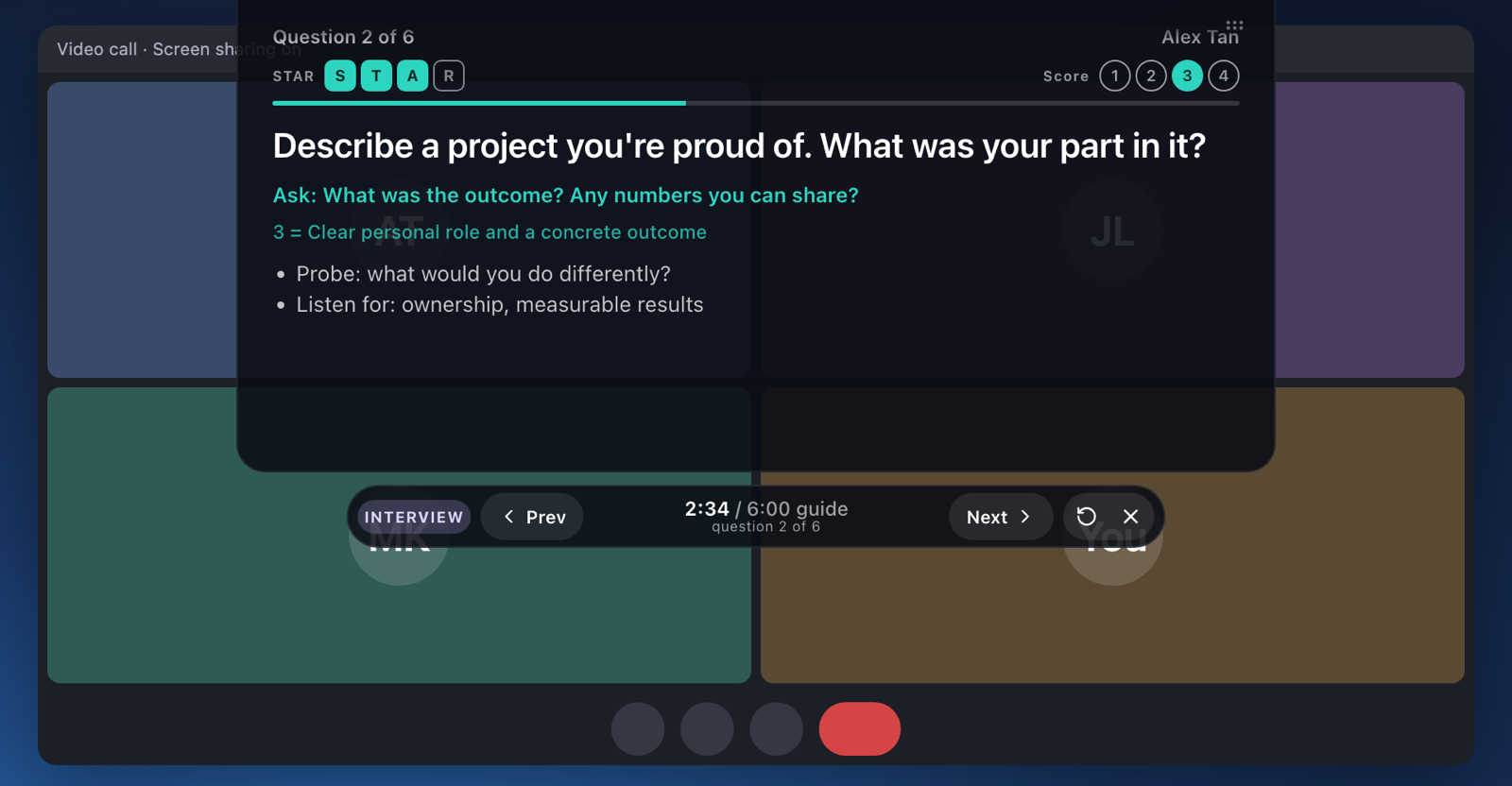
Question cards with follow-ups, a time guide for each question, STAR ticks and a score from 1 to 4.
Practice
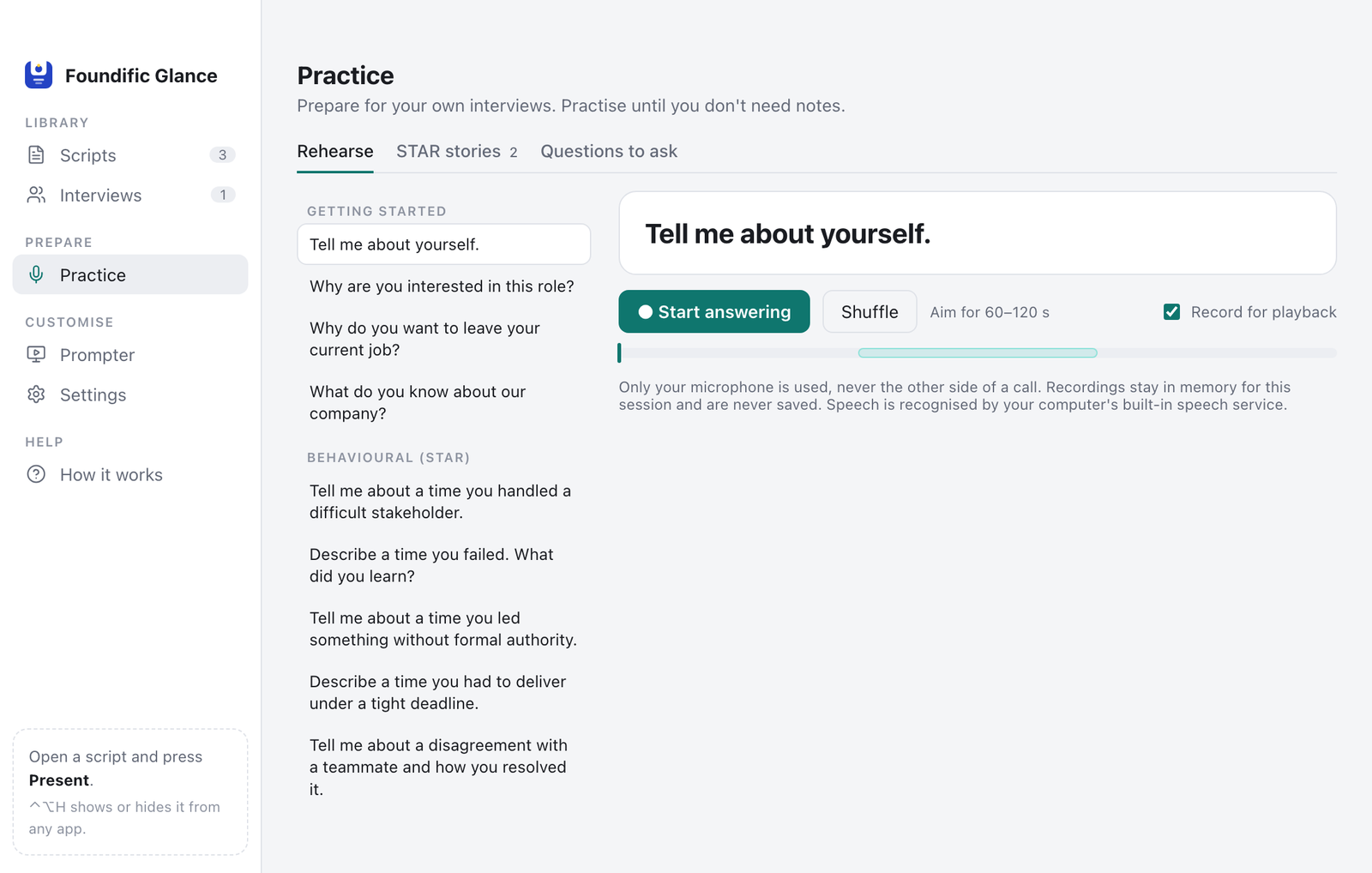
Rehearse answers out loud and play them back. Recordings stay in memory and are never saved to disk.
Scripts and the prompter
Write your script in the visual editor or in Text mode, then press Present to show it under your camera.
- The editor has headings, bold, highlights, cues such as [pause] and notes to yourself.
- You can import .docx and .txt files.
- An optional 3 or 5 second countdown runs before the script starts.
- Click-through mode lets your clicks pass through the prompter to the window behind it.
Structured interviews
Plan each interview as question cards, then run it from the prompter one question at a time.
- Question cards hold each question with its follow-ups and a scoring guide.
- The timer starts by itself and shows time against the guide for each question.
- Tick STAR points (Situation, Task, Action, Result) and give a score from 1 to 4, from the prompter or with shortcuts.
- A scorecard and a write-up tab keep your notes, and the scorecard exports to a CSV file.
Interview practice
Rehearse answers out loud before an interview and listen back to how they sound.
- Record an answer and play it back. Recordings are kept in memory only and never saved to disk.
- Build STAR stories for your answers.
- Practice also gives you questions to ask the interviewer.
Shortcuts, themes and updates
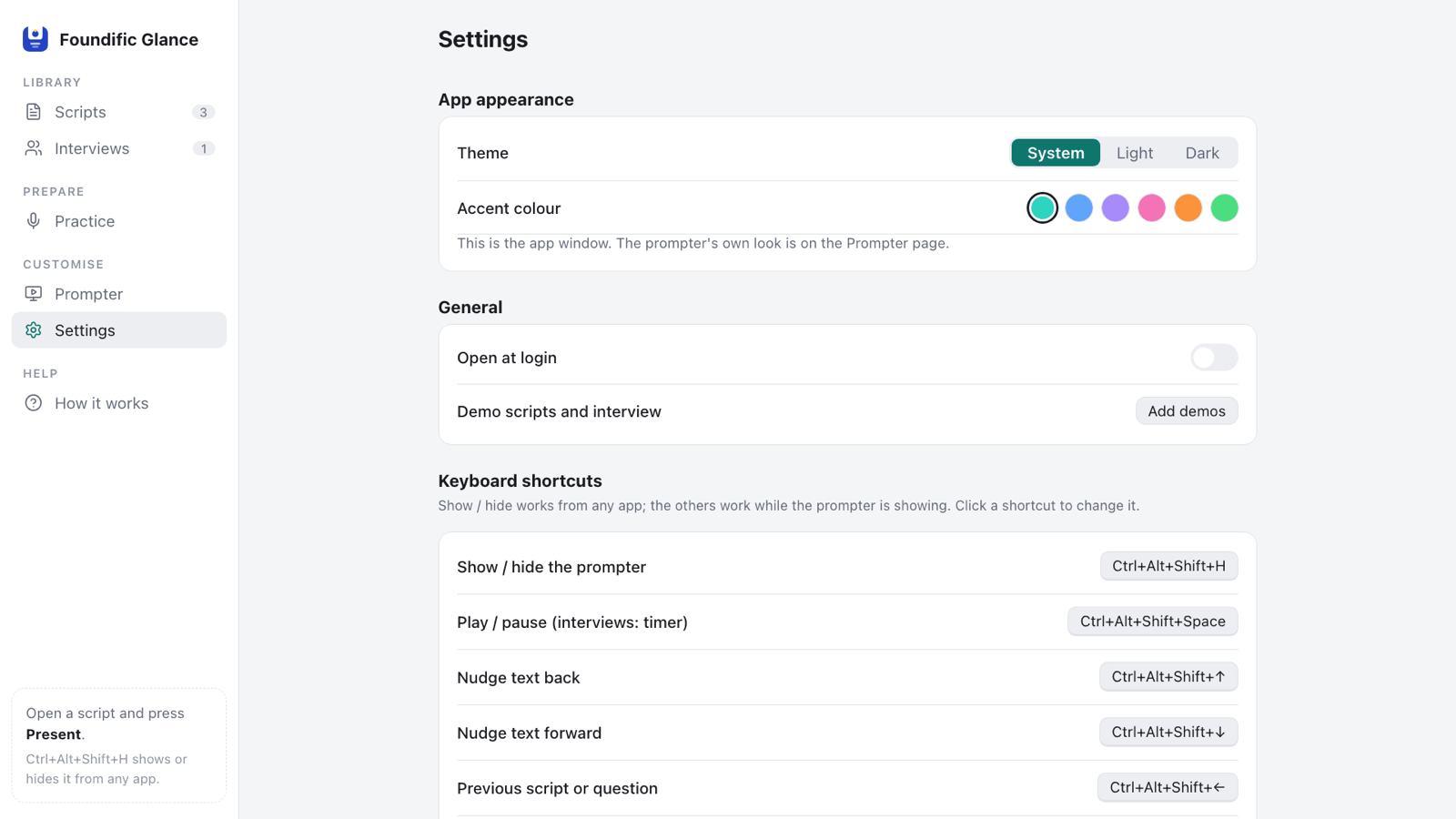
Control the prompter from any app with keyboard shortcuts, and set its look to suit you.
- The default shortcut to show or hide the prompter is Control+Option+H on a Mac and Ctrl+Alt+Shift+H on Windows. You can change every shortcut.
- You can set the theme, font, colours and text size, and choose a glass background.
- New versions download in the background, and one click on "Restart to update" installs them. The Microsoft Store version is updated by the Store.
How to get started
Install Glance, run the screen-share check, then present.
- Download and install
Open the downloaded file and drag Foundific Glance to Applications. The Windows version is coming to the Microsoft Store.
- Run the screen-share check
Setup includes a check that confirms the prompter is hidden from screen capture on your computer.
- Present
Choose a script and press Present, or use the show and hide shortcut from any app.
How hiding from screen share works
Glance asks the operating system to leave the prompter window out of screen captures. Screen sharing and recording apps that follow this setting do not show the prompter.
- On macOS, Glance sets the window's sharing type so that captures leave it out.
- On Windows, Glance sets the window's display affinity to
WDA_EXCLUDEFROMCAPTURE.
Some capture tools can ignore this setting and show the prompter. Use the built-in screen-share check, shown during setup, to confirm the prompter is hidden on your computer. Then test with the call or recording app you will use.
Privacy
Everything you create in Glance is stored only on your computer. The app needs no account and has no ads, analytics or tracking.
Stored on your computer
Scripts, interviews, scores and notes are saved in the app's data folder on your computer. We cannot see them.
No account or tracking
There is no sign-in, no analytics and no advertising. Practice recordings are never saved to disk.
Two kinds of network request
The update check goes to GitHub. Voice scrolling uses your operating system's speech service, which may use Apple's or Microsoft's servers.
The privacy policy sets out what the app stores, what it sends and how to delete your data.
System requirements
Glance runs on macOS and Windows. The Mac download is one file for both Apple Silicon and Intel Macs.
| System | Supported versions | How to install |
|---|---|---|
| Mac | macOS 13 or later, on Apple Silicon or Intel | Open the downloaded file and drag Foundific Glance to Applications. |
| Windows | Windows 10 (version 2004) or Windows 11 | Coming soon to the Microsoft Store. |
Questions
Answers to common questions about price, privacy, call apps and updates.
Is Foundific Glance free?
Yes. Glance is free to use. It needs no account and has no ads or tracking.
Is my data uploaded anywhere?
No. Scripts, interviews, scores and notes are stored only on your computer. The only network requests are the update check to GitHub and, when you use Voice scrolling, your operating system's speech service.
Does it work in Zoom, Google Meet and Microsoft Teams?
Glance hides the prompter with the operating system's capture exclusion, so people watching a shared screen do not see it. Some capture tools can ignore this. Use the built-in screen-share check, then test in the call app you will use.
How do updates work?
The Mac app checks GitHub for a new version and downloads it in the background. Click "Restart to update" to install it. Updates are signed by Foundific. The Windows version will be updated by the Microsoft Store.
Can I use Glance in an interview, exam or meeting?
Only where the rules allow it. Do not use Glance to deceive anyone or to break the rules of an interview, exam or meeting. Interviewers should tell candidates if they take notes or score. The terms of use set this out.
Download Foundific Glance
Free for Mac, with no account, ads or tracking. The Windows version is coming to the Microsoft Store.
For help or to report a problem, use the contact form. Terms of use · Privacy policy